Tips for Building a Knowledge Base for an AI Agent
The detailed process of connecting and performing the initial setup of the AI Agent is described in the guide "Setting up an AI bot to automatically respond to customers".
In this article, we explain the best practices for formatting files for the bot and provide recommendations to improve search efficiency across uploaded materialetting up an AI bot to automatically respond to customers
Contents#
- What can be uploaded
- File structure
- Data examples for upload
- Additional file tagging
- Question–Answer feature
What Can Be Uploaded#
In the "Sources" settings block, you can upload files (up to five) that will help the AI Agent formulate accurate responses.
These may include:
- Frequently Asked Questions (FAQ): common customer questions and prepared answers.
- Product and service knowledge base: descriptions, specifications, and usage instructions.
- Price lists: up-to-date prices for products or services.
- Store contacts and addresses: information about branch locations and points of sale.
- Product usage recommendations: tips and guides for users.
- Legal information: privacy policy, terms of use, contracts.
- Marketing materials: information about promotions, discounts, and special offers.
The AI Agent supports the following file formats: .docx, .pptx, .csv, .html, .rtf, .xlsx, .xml, .md, .txt, .json, .pdf. - Maximum file size: 30 MB.
File Structure#
To help the AI Agent find information faster— and to make file maintenance easier— we recommend following these guidelines:
- Structure your information: each row, entry, or paragraph should contain a single idea or data unit.
- Use headings and sections to organize information logically.
- Choose descriptive file names. Avoid generic names such as "Document" or "Data." The file name should clearly reflect its content.
- Check for typos and duplicate entries: before uploading.
- Update files regularly: to ensure the AI Agent provides current information.
- Test the AI Agent after uploading files: ask questions and verify that the answers match the uploaded data.
- When using tables: ensure all cells are filled and avoid merged cells, as merged cells may cause incorrect data analysis.
Data Examples for Upload#
Below are sample files for the AI Agent Knowledge Base. These structures are not mandatory and are provided for reference only.
JSON Format#
Store Address List:
[
{
"country": "United States",
"state": "California",
"city": "Los Angeles",
"store_type": "Flagship",
"shopping_center": "Downtown Mall",
"store_address": "123 Main St",
"working_hours": "Mon–Sun 10:00 AM – 9:00 PM",
"nearest_public_transport": "Metro Red Line",
"how_to_find": "2nd floor"
},
{
"country": "United States",
"state": "New York",
"city": "New York City",
"store_type": "Retail",
"shopping_center": "Midtown Plaza",
"store_address": "456 Broadway Ave",
"working_hours": "Mon–Sun 10:00 AM – 9:00 PM",
"nearest_public_transport": "",
"how_to_find": "Ground floor"
}
]
Product Catalog:
[
{
"sku": "MA1465-10",
"model": "MARK-II",
"manufacturer": "Donut World",
"name": "Donut Maker Machine",
"description": "The MARK-II donut maker machine is a compact and efficient device designed for fast donut preparation. It features even heating with a non-stick cooking surface. Heat-insulated handles help prevent burns, while the overheating protection system ensures safe operation and durability.",
"price": "$1,500",
"availability": "In stock"
}
]
HTML Format#
<!DOCTYPE html>
<html lang="en">
<head>
    <meta charset="UTF-8">
    <title>Frequently Asked Questions</title>
</head>
<body>
    <h1>Frequently Asked Questions (FAQ)</h1>
    <section>
        <h2>General Questions</h2>
        <ul>
            <li>
                <strong>Question:</strong> What payment methods do you accept?<br>
                <strong>Answer:</strong> We accept Visa, Mastercard, and PayPal.
            </li>
            <li>
                <strong>Question:</strong> How can I track my order?<br>
                <strong>Answer:</strong> Please use the tracking link sent to your email address.
            </li>
        </ul>
    </section>
</body>
</html>
Additional File Tagging#
To improve the AI Agent’s search accuracy across uploaded documents, you can enclose important information in double square brackets. This helps the system recognize critical data and provide more precise answers in chat.
You can tag [[words]], [[abbreviations]], [[SKUs]], or [[expressions]].
We recommend using tags for unique entities, such as product codes, models, plan names, contract numbers, limitations, or role names.
The AI Agent recognizes these tags and will respond strictly based on your data — even when the knowledge base includes large price lists or complex documents.
Example (Product catalog with tags)#
[
{
"sku": "[[MA1465-10]]",
"model": "[[MARK-II]]",
"manufacturer": "Donut World",
"name": "Donut Maker Machine MARK-II",
"description": "The MARK-II donut maker machine is a compact and efficient device designed for fast donut preparation. It features even heating with a non-stick cooking surface. Heat-insulated handles help prevent burns, while the overheating protection system ensures safe operation and durability.",
"price": "$1,500",
"availability": "In stock"
}
]
If a visitor asks the AI Agent in chat, for example: "How much does the MARK-II donut maker cost, and is it available?"
The AI Agent will find an exact match using the [[MARK-II]] tag and respond based on the catalog data: "The MARK-II donut maker machine costs $1,500 and is currently in stock."
The same tags may appear across multiple documents. In this case, the AI Agent will combine information from all relevant files when generating a response.
Important: uploaded documents cannot be edited. To apply tags, you must delete existing files and upload new tagged versions. Tagging must be done manually using online editors, search-and-replace tools, custom scripts, or Excel spreadsheets.
"Question–Answer" Feature#
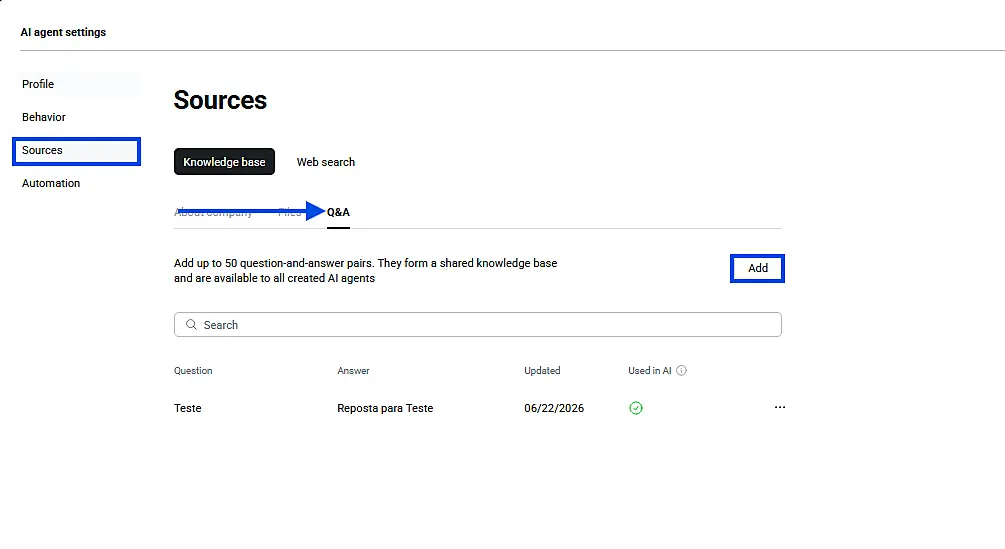
In the AI Agent settings, you can add a Frequently Asked Questions block that will be used directly to generate responses. You can create up to 50 question–answer pairs.
Go to "Sources" → "Knowledge Base" → "Q&A" and click "Add".
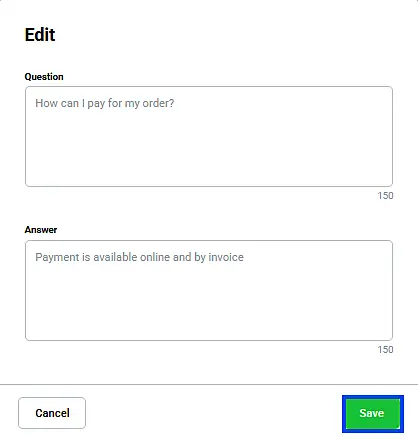
In the window that opens, enter the customer’s question and the prepared answer, then click "Save."
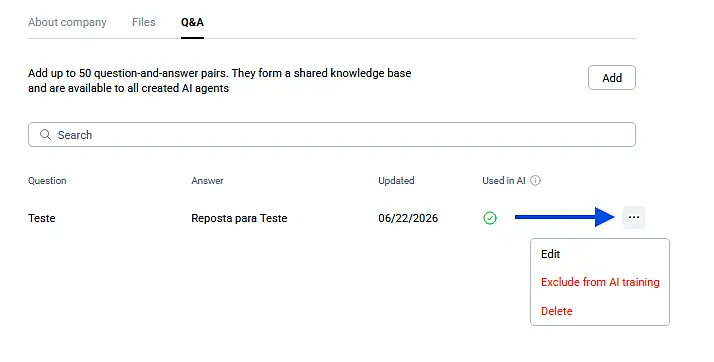
Information about the added responses will appear in the same section. You will also see the last modification date and can edit the text or disable the pair for use by the AI Agent by clicking the three dots on the right.